All web hosting packages offered by Stallion Hosting include a free SSL Certificate.
Installing an SSL certificate is an easy and straight forward process.
What is an SSL Certificate?
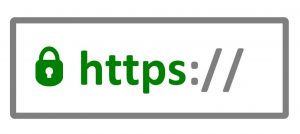 An SSL (Secure Sockets Layer) Certificate, also called a Digital Certificate, creates a secure link between a website and a visitor’s browser. By ensuring that all data passed between the two points remains private and secure. SSL protects information and adds an additional security layer to prevent the theft of private information such as credit card numbers, names and addresses etc.
Even if your website doesn’t handle sensitive information like credit cards, installing an SSL certificate assists in improving your websites security.
Benefits of SSL Certificates:
- Additional layer of security – creating a secure link between your website and the website visitors browser.
- Boosts search engine ranking – Google recently updated its search engine algorithm and added HTTPS as a ranking signal. This means that if your website is secured with a SSL certificate (https) then Google will now take this into account when assessing your websites ranking and search engine optimisation.
- Build trust – website visitors are aware of the basics of internet security and have been taught to look out for the green padlock in order to identify websites that have digital certificates installed. Installing an SSL builds trust between the website and web visitors.
Once you have installed the SSL certificate, your website address bar will change from:


From the two screenshots above, you will notice once the SSL has been installed, the address bar shows a green padlock indicating the website has a SSL certificate/digital certificate.
You will also notice the website address is now https: (with an s) instead of http or the straight http:
Installing a Free SSL Certificate using cPanel – Step by Step Guide:
The cPanel system will automatically run the AutoSSL certificate issuing process, however if you’re required to install this manually then simply follow the process described below.
Step 1 Login to your cPanel:
Check your emails for an email from Stallion Hosting called New Account Information, in this email you will find your cPanel login details, which will be:
Username:
Password:
Login to your cPanel: yourwebsite.co.za/cpanel (remember to replace yourwebsite.co.za with your actual domain name)
Login screen looks like this:

Step 2 Click SSL/TLS Status:
Once logged in, scroll down to the Security menu in cPanel and click on SSL/TLS Status (shown in the red box below):

Step 3 AutoSSL:
You should be presented with a list of your domains, and if the cPanel AutoSSL certificate process has already run automatically then your domain names will look like this:

From the above, you will see the first icon is green and shows the green padlock, the certificate status also confirms the AutoSSL domain has been validated.
If you are presented with a red icon and the certificate status isn’t validated, then simply tick all domain boxes and at the top of the page, click Run AutoSSL. This will run the AutoSSL process and install the related SSL Certificates.
If you require any further assistance, contact the Stallion Hosting Stallion Hosting Support team and they will gladly assist you further.